Prefer AI? Summarize this with ChatGPT,
Claude,
Google AI Overview, or
Perplexity.
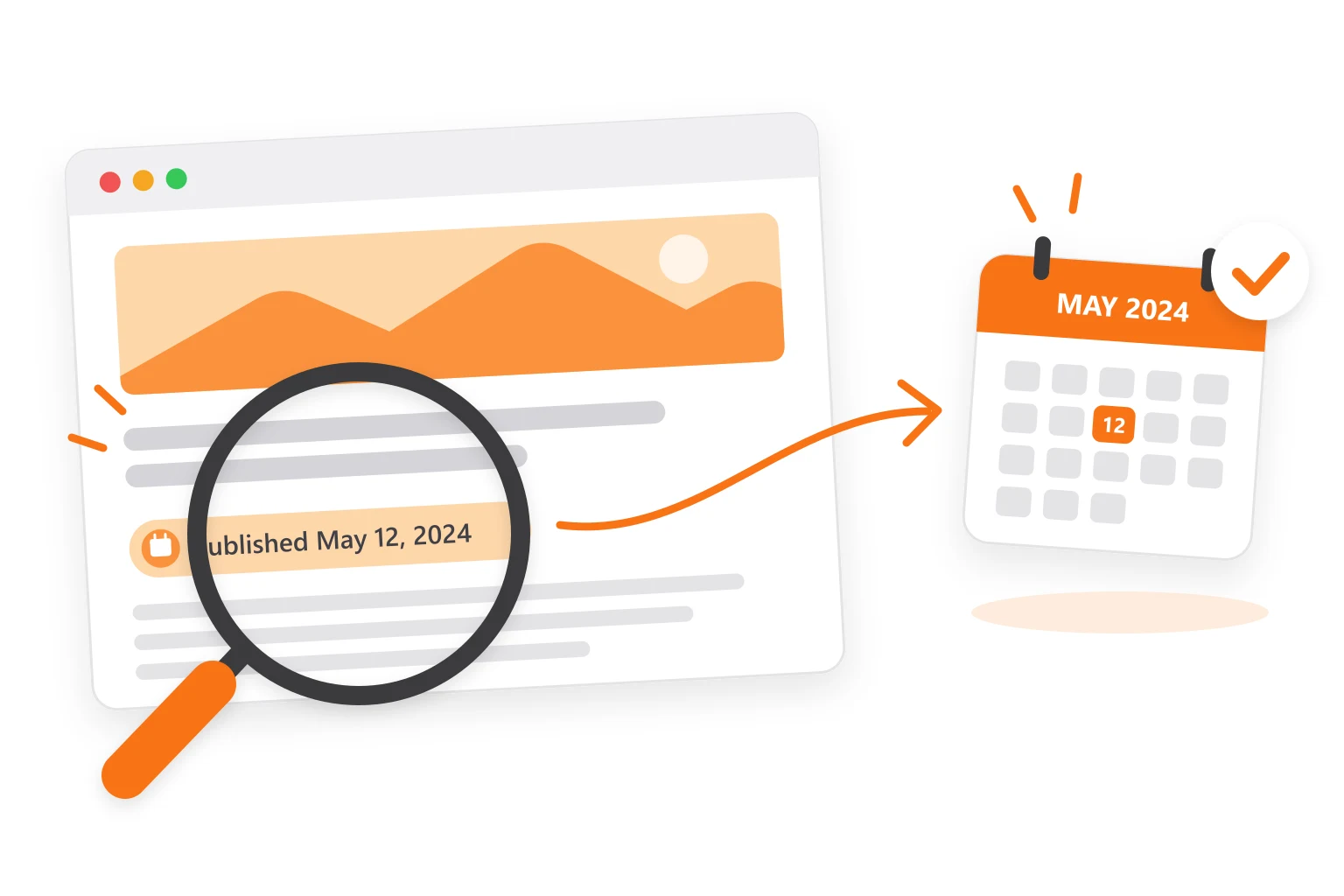
You found a page you want to cite, or a post you're about to pitch for a link. Then you notice there's no date on it. Or there's a date, but it says it was updated last week, and the stats in it look five years old.
Finding when a page was published usually takes two minutes. The harder part is that every method gives you a slightly different date, and most guides stop before telling you which one to believe.
This guide lists seven ways to find the date, from the quickest to the most thorough, and ends with how to decide when they disagree.
The short version
| Method | What it tells you | How much to trust it | Time |
|---|---|---|---|
| 1. The page: byline, URL, image paths | The date the site shows | Medium, sites can change it | 30 seconds |
| 2. The page's source code | The date the site stored for search engines | High | 1 minute |
| 3. A free publish date checker | Every date in the code at once | High | 10 seconds |
| 4. The Wayback Machine | The page existed by this date | High, but only an upper limit | 1 minute |
| 5. Google search | Google's estimate | Low | 1 minute |
| 6. Sitemap and RSS feed | The last change, sometimes the publish date | Medium | 2 minutes |
| 7. Domain age | When the whole site started | High, but not for a single page | 30 seconds |
If you're in a hurry, check the source code, then compare it with the first Wayback Machine snapshot. If both roughly agree, you have your date.
First, know which date you need
"When was this published" can mean three different things, and mixing them up causes most of the confusion:
- Published date: when this page first went live. This is usually what you want for a citation or to judge how fresh the information is.
- Updated date: when someone last changed it. A 2019 post edited last month will show a recent date even though most of its content is old.
- Site date: when the website itself started. That comes from the domain's registration and has nothing to do with a single article.
Keep the three apart and the methods below make more sense.
1Check the page: byline, URL and image paths
Start with what's in front of you:
- The byline. Most blogs and news sites print the date under the headline or next to the author's name. Check whether it says Published or Updated.
- The URL. Many sites put the date in the address, like
/2024/05/12/post-title/. Unlike a printed date, a URL rarely changes after publishing, because changing it breaks every link pointing to it. - Image paths. On WordPress sites, right-click an image in the post and open it in a new tab. Paths like
/wp-content/uploads/2023/05/show the month the image was uploaded, which is usually when the post was being written. It's one of the few clues that survives when a site hides its dates. - The oldest comment. The first comment can't be older than the post, so its date is a ceiling.
One thing to skip: the copyright year in the footer. Most sites generate it automatically, so it shows the current year on every page, old or new.
2Read the date hidden in the page's code
Many sites that hide the date on screen still store it in the code, because search engines read it there. Google asks sites to mark up articles with structured data and fill in the datePublished and dateModified fields, and to show the same date on the page (Google's guide to byline dates explains what it looks for). This structured data, written as JSON-LD, appeared on 41% of pages in 2024, up from 34% two years earlier (HTTP Archive's 2024 Web Almanac).
To find it:
- Open the page and press Ctrl+U on Windows or Cmd+Option+U on a Mac to view the source.
- Press Ctrl+F or Cmd+F and search for these, one at a time:
datePublishedanddateModifiedarticle:published_timeandarticle:modified_time<time(an HTML date tag) andpubdate
- Read the date next to the match. It's usually a full timestamp, like
2024-05-12T09:30:00-04:00, which gives you the time and time zone too.
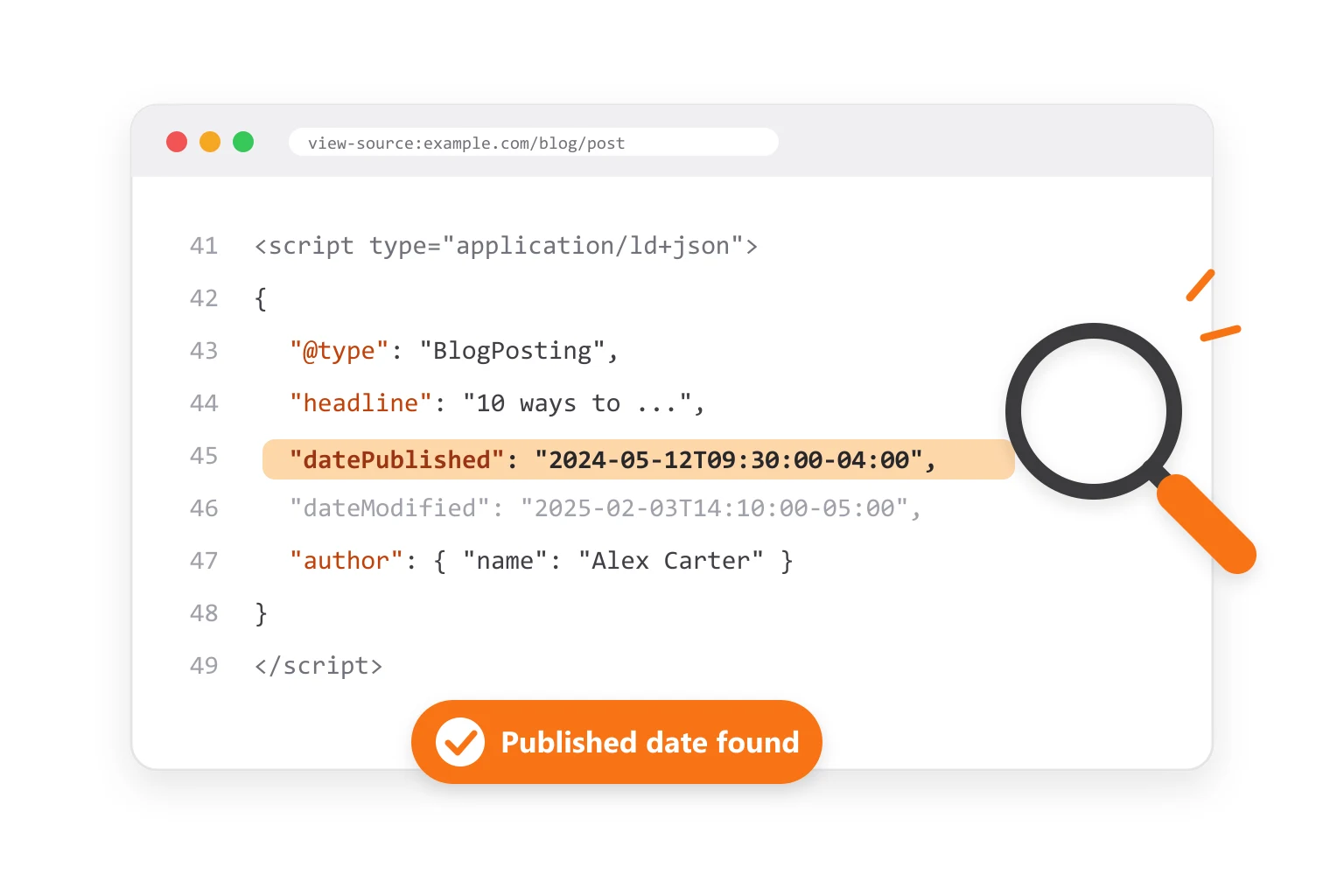
Two traps. Pages often contain other dates, for images, comments or related posts, so make sure the date belongs to the article itself. And if datePublished and dateModified are the same, the site may just be setting both to the last edit.
3Let a free tool read the code for you
Searching the source for five different tags gets old fast, especially if you're checking a list of pages. The free article publish date checker reads the structured data, meta tags and time tags in one go, shows you which source each date came from, and warns you when they disagree. If the page has no date at all, it sends you straight to the page's Wayback Machine history.
4Find the first snapshot in the Wayback Machine
The Wayback Machine has been saving copies of web pages since 1996 and passed one trillion archived pages in October 2025 (the Internet Archive's announcement). Paste the page's full URL, open the calendar, and go to the earliest year with a dot.
Read that first snapshot carefully: it proves the page existed by that date, not that it was published on it. Small pages can go weeks or months before the archive notices them, and some are never captured at all.
It's still the most important check on this list, for two reasons. The site can't edit it, so it's your evidence if a date looks suspicious. And it's sometimes the only record left: Pew Research found that 38% of web pages that existed in 2013 were no longer reachable by October 2023 (Pew's study on disappearing web content).
This short video walks through the Wayback Machine and the source code check on a real site:
5Use Google search, but don't trust its date
Google can give you a date in two ways:
- The date in the results. Many results show a date before the description. Search for the exact page title and look at the snippet.
- The
before:andafter:operators. Searchingsite:example.com "page title" before:2023-01-01tells you whether Google knew the page before that date.
Some tutorials also teach adding a code like &as_qdr=y15 to the end of the Google results URL to force a date to appear. It shows a date, but it's the same estimate, and the comments under those videos are full of people getting a different answer than the page's own code.
That's because Google calls its byline date "the date that Google estimates that the web page was updated or published", and builds it from several signals (Google's guide to byline dates). An update can easily make an old page look new.
We measured how loose this is. In October 2026, we tested a way to find fresh outreach targets: ask Google for pages from the last three weeks, then read the publish date in each page's own code. Of 482 pages Google returned, only 136 (28%) had a publish date from the last two weeks in their code. The rest were older pages, recently updated pages or pages with no date at all. Google's date is a clue, not an answer.
6Check the sitemap and RSS feed
Two files most sites publish for search engines and feed readers can give you a second opinion:
- The XML sitemap. Go to
example.com/sitemap.xml(or the sitemap listed inexample.com/robots.txt) and find the page's URL. The<lastmod>value next to it is the last time the page changed, according to the site (the sitemap protocol defines it). On small, rarely edited blogs, that's often the publish date too. - The RSS feed. Try
example.com/feedorexample.com/rss. Each post in the feed carries apubDate. Feeds only list recent posts, so this works best for pages published in the last few months.
One method you'll see in older guides doesn't work anymore: typing javascript:alert(document.lastModified) in the address bar. It reports the server's Last-Modified header, and on most modern sites that changes every time the site is rebuilt or its cache refreshes, so it usually shows today's date.
7For the whole site, check the domain's age
If you want to know when the website itself started, the date belongs to the domain, not to any page. The domain's registration date is in its public registration record, which you can look up with ICANN's lookup tool. The free domain age checker shows the registration date and the first Wayback Machine capture side by side, for up to 20 domains at once.
Keep in mind that a domain can be registered years before a site goes live on it, or bought and relaunched, so the first Wayback snapshot of the homepage is often a better guide to when the current site started.
When the dates don't match, which one to trust
You'll often get three different answers. Here's the order to trust them in:
- The date in the page's code, if the visible date matches it. Two sources from the site agreeing is the strongest evidence you'll get.
- The first Wayback Machine snapshot. The publish date can't be later than this. If the site's date is after the first snapshot, the site changed its date.
- The URL date, image paths and sitemap. Good supporting evidence, weak on their own.
- Google's date. An estimate, and the easiest to fool.
Can a site fake its date? Yes. Some backdate posts, and many bump the date for small edits so the post looks fresh. When it matters, like settling a dispute over who published something first, use the Wayback snapshot: it's a third-party record the site can't edit, and you can share its link as proof.
Why the date matters before you pitch a page
If you're checking dates as part of link building or PR outreach, the date tells you how to approach the page:
- An old post with outdated numbers is an opening. Pointing out stale stats and offering a current source is a reason to email that has nothing to do with you asking for a favor.
- A post that's a few years old may have been written by someone who has since left. Before you write to the byline, check who looks after the page now. The author contact finder finds the writer and where to reach them, and our guide on how to find someone's email address covers what to do when the writer has moved on.
- A recent post is usually still owned by its author, who knows it well and can edit it quickly.
Checking every page by hand is fine for five prospects. For fifty, it's a day of work. Mentiohunt finds the pages where your article fits, works out who can make the editorial call on each one, and sends the first outreach email for you, up to the prospect's first reply.
The takeaway
Look at the page, then read the date in its code, then confirm it with the first Wayback Machine snapshot. Ignore the footer's copyright year, treat Google's date as a guess, and when two dates disagree, trust the one the site can't change.
Founder at Mentiohunt. Building distribution tools for founders and small marketing teams. Writes about backlink building and founder-led growth.
Turn this guide into a weekly opportunity queue.
Mentiohunt finds relevant backlink opportunities from your site, competitors and keywords, explains why each one fits, and runs the outreach through the first reply. The preview is free and sends nothing.